What Is Linux and How Does It Work? A Beginner's Guide
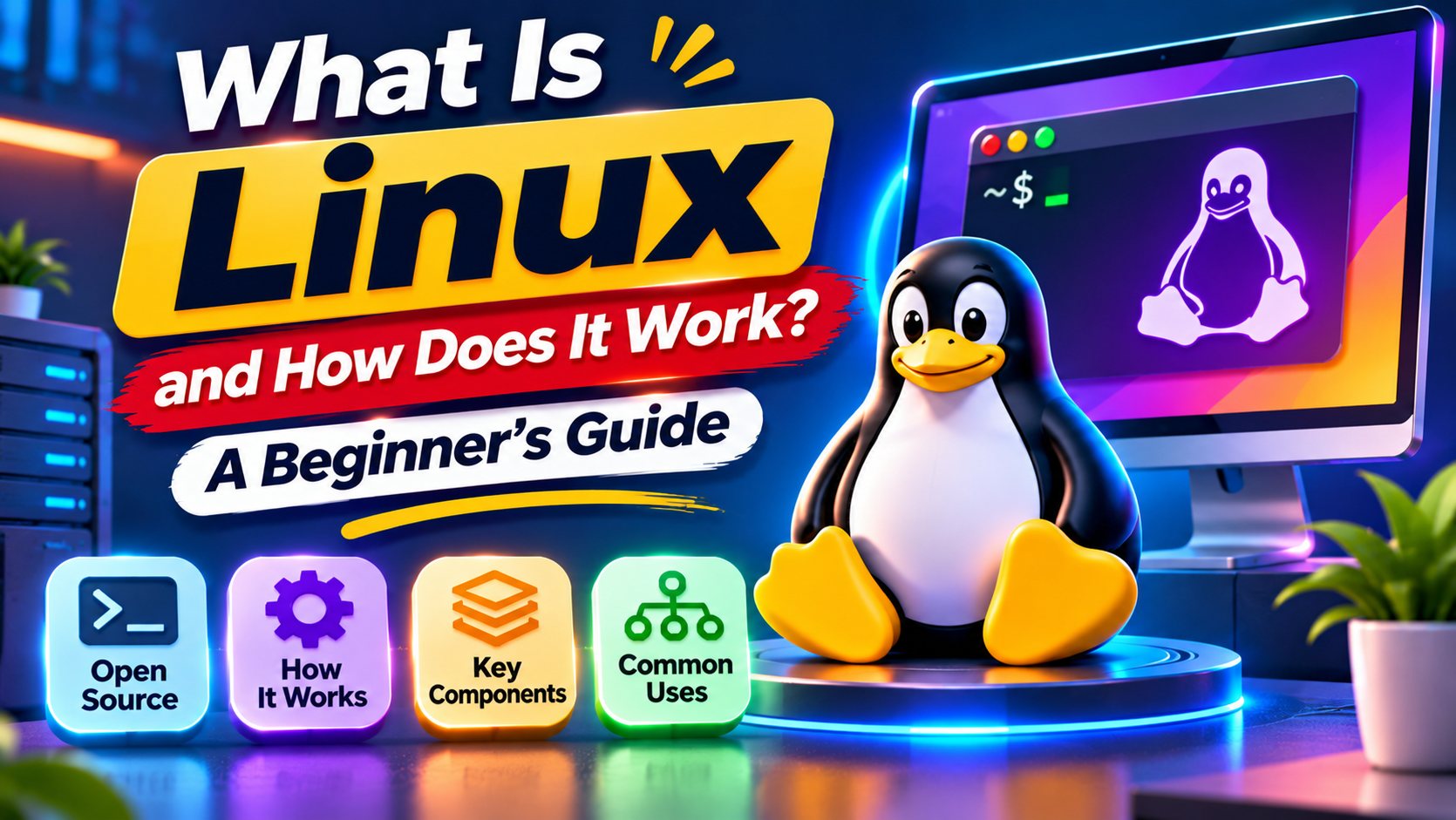
Have you ever wondered what happens behind the scenes when a website loads, a cloud server starts, or a developer runs a command in the terminal?
Many of these operations depend on Linux.
Linux powers a wide range of computing environments, from cloud servers and web hosting platforms to development workstations, embedded devices, and container-based applications. Despite its widespread use, beginners often assume that Linux is complicated or that learning it requires advanced programming skills.
That isn't necessarily true.
You can begin learning Linux with a few basic concepts, a terminal, and some practical exercises.
The key to understanding Linux is learning how its kernel, system utilities, applications, and command-line tools work together.
In this guide, we'll explore what Linux is, how it works, how it differs from Windows, and why developers and system administrators use it. You'll also learn essential commands, understand file permissions, and complete a simple Linux terminal project.
What Is Linux?
Linux is an open-source, Unix-like operating system family built around the Linux kernel.
An operating system manages a computer's resources and provides the environment in which software applications run.
For example, when you open a browser, create a document, or connect to a network, your operating system coordinates the hardware and software involved.
Linux performs these tasks through a combination of its kernel, system libraries, utilities, services, and applications.
Linux Kernel vs. Linux Operating System
The terms Linux kernel and Linux operating system are often used interchangeably, but they refer to different things.
The Linux kernel is the core software component that manages hardware resources and provides interfaces for applications.
A Linux distribution, such as Ubuntu or Fedora, combines the kernel with additional software to create a usable operating system.
This distinction matters because the kernel alone does not provide everything needed for a typical desktop or server environment.
Who Created Linux?
Linux began in 1991 when Linus Torvalds started developing the Linux kernel.
Over time, developers and organizations around the world contributed improvements, supported new hardware, and expanded its capabilities.
Today, Linux kernel development continues through collaboration among individuals and organizations.
Is Linux Free and Open Source?
The Linux kernel is distributed under the GNU General Public License version 2, with specific licensing provisions.
Its source code can be inspected, modified, and redistributed according to the applicable license terms.
Many Linux distributions are free to download and use.
However, some enterprise distributions provide paid subscriptions, support, and additional services.
How Does Linux Work?
To understand Linux, it helps to look at how software communicates with computer hardware.
A typical Linux-based system contains several connected layers.
+-----------------------------+
|        Applications         |
|  Browsers, Editors, Servers |
+-----------------------------+
|    Shell and System Tools   |
+-----------------------------+
|  System Libraries/Services  |
+-----------------------------+
|        Linux Kernel         |
+-----------------------------+
|           Hardware          |
|     CPU, RAM, Disk, NIC     |
+-----------------------------+
This is a simplified conceptual representation. Real applications interact with the operating system through libraries, system calls, and other interfaces rather than always passing through every illustrated layer.
Let's explore the main components.
1. Hardware Provides Computing Resources
Hardware includes the physical components of a computer:
- Central Processing Unit (CPU)
- Random Access Memory (RAM)
- Storage devices
- Network interfaces
- Input and output devices
Applications need controlled access to these resources.
Without an operating system, managing multiple programs and shared hardware would be significantly more difficult.
2. The Linux Kernel Manages Hardware Resources
The kernel is responsible for several essential operations.
Process management: Schedules processes and helps determine how CPU resources are shared.
Memory management: Allocates memory and enforces memory protection between processes.
Device management: Uses drivers and kernel interfaces to communicate with supported hardware.
File system management: Provides mechanisms for accessing files and directories.
Networking: Implements networking features that applications use to communicate.
For example, when a browser downloads a file, the kernel participates in network communication, memory management, and writing data to storage.
3. System Services Run Background Tasks
Linux systems use background processes and services to perform operating system tasks.
These may include:
- Network management
- Logging
- Scheduled activities
- Remote access
- System maintenance
Many modern Linux distributions use systemd to initialize and manage system services.
However, other initialization systems are also used.
4. The Shell Interprets Commands
A shell allows users to interact with the operating system using commands.
For example:
ls
This command lists the contents of the current directory.
The shell interprets the command and launches the appropriate program.
Bash is a common Linux shell, although alternatives such as Zsh and Fish are also available.
A terminal emulator is the application window that provides access to an interactive shell.
5. Applications Perform Useful Tasks
Applications are the programs that users interact with directly.
Examples include web browsers, code editors, databases, development tools, and server applications.
Linux supports both graphical applications and command-line software.
Key takeaway: The kernel manages system resources, while the surrounding software provides the tools, services, and applications that make Linux usable.
What Are Linux Distributions?
A Linux distribution, often called a distro, is a complete operating system built around the Linux kernel.
Different distributions include different software, package managers, update policies, configuration tools, and desktop environments.
This allows Linux to support different needs, from personal desktop computing to enterprise infrastructure.
Popular Linux Distributions
| Distribution | Common Focus | Beginner Consideration |
|---|---|---|
| Ubuntu | Desktops, servers, development | Extensive documentation and tutorials |
| Debian | General-purpose computing and servers | Stability-oriented development |
| Fedora | Development and modern Linux technologies | Frequent software updates |
| Linux Mint | Desktop computing | Familiar graphical experience |
| Red Hat Enterprise Linux | Enterprise infrastructure | Commercial support and enterprise tools |
| Kali Linux | Security testing and digital forensics | Specialized tools rather than general beginner use |
Which Linux Distribution Should You Choose?
If you're completely new to Linux, Ubuntu or Linux Mint can be practical starting points.
Both provide desktop environments and accessible learning materials.
If you're interested in server administration or cloud computing, Ubuntu Server and other server-oriented distributions are worth exploring once you understand the basics.
Kali Linux is designed for specialized security work and generally isn't necessary for learning basic Linux administration.
The most suitable distribution depends on your goals, hardware, and preferred workflow.
Linux vs. Windows: What's the Difference?
Linux and Windows both provide operating systems capable of running software and managing hardware.
However, they differ in development models, system management, and software ecosystems.
| Feature | Linux | Windows |
|---|---|---|
| Development | Open-source kernel and many open-source components | Primarily proprietary |
| Cost | Many free distributions; commercial options available | Licensing varies |
| Customization | Extensive system-level customization | Varies by version and configuration |
| Software management | Package repositories and other installation methods | Installers, Microsoft Store, package managers |
| Common command-line tools | Bash, Zsh, and system utilities | PowerShell and Command Prompt |
| Typical applications | Servers, cloud, development, desktops | Desktops, enterprise applications, gaming, servers |
Neither operating system is automatically superior for every task.
Linux is particularly useful for learning open-source development, cloud infrastructure, automation, and server administration.
Windows may be preferable when a particular application or hardware component requires Windows compatibility.
Understanding the Linux File System
Linux organizes files within a hierarchical directory structure.
Unlike traditional Windows paths that use drive letters such as C:\, Linux uses a single directory tree beginning at /.
This directory is called the root directory.
Storage devices and file systems can be mounted at different locations within the tree.
Important Linux Directories
| Directory | Purpose |
|---|---|
/ |
Root of the file system |
/home |
Common location for regular user home directories |
/etc |
System configuration files |
/var |
Variable application and system data |
/tmp |
Temporary files |
/usr |
Shared applications, libraries, and resources |
/boot |
Files commonly required during system startup |
For example, a regular user's personal files may be stored under:
/home/alex/
Linux file names are generally case-sensitive.
That means:
Report.txt
report.txt
can refer to two different files.
Understanding the file system is important because many Linux administration tasks involve navigating directories, editing configuration files, and examining logs.
10 Essential Linux Commands Every Beginner Should Know
The terminal is one of the most valuable tools for learning Linux.
You don't need to memorize hundreds of commands immediately.
Start with commands that help you navigate directories and manage files.
| Command | Purpose |
|---|---|
pwd |
Display the current working directory |
ls |
List directory contents |
cd |
Change directories |
mkdir |
Create a directory |
touch |
Create an empty file or update timestamps |
cp |
Copy files or directories |
mv |
Move or rename files |
cat |
Display file contents |
whoami |
Show the current username |
man |
Open command documentation |
Practice: Create Your First Linux Workspace
Open a terminal in a Linux environment.
Start by creating a practice directory inside your home folder:
mkdir -p ~/linux-practice
cd ~/linux-practice
Now check your current location:
pwd
Your output should resemble:
/home/yourusername/linux-practice
Create a file:
touch notes.txt
Add a line of text to the file:
echo "Learning Linux commands" >> notes.txt
The >> operator appends text to a file rather than replacing its existing content.
Now display the contents:
cat notes.txt
You should see:
Learning Linux commands
Finally, list the files:
ls -l
The -l option displays additional information, including file permissions, ownership, size, and modification time.
These few commands introduce some of the most common tasks performed in the Linux terminal.
How Does Linux Manage Users and Permissions?
Linux supports multiple user accounts and provides access controls for files and directories.
The traditional permission system defines three basic permissions.
- Read (
r): Read file content or list directory entries when other directory requirements are satisfied. - Write (
w): Modify a file or change directory entries when permitted. - Execute (
x): Execute a file or traverse a directory.
Permissions are commonly assigned to three categories:
- Owner
- Group
- Other users
Understanding Permission Strings
Run:
ls -l notes.txt
You may see something similar to:
-rw-r--r-- 1 alex alex 24 Nov 4 10:30 notes.txt
The first group of characters represents the file type and traditional permissions.
-rw-r--r--
The first - indicates a regular file.
The remaining characters are divided into three groups:
rw-  r--  r--
 |    |    |
Owner Group Others
In this example, the owner has read and write access, while the group and other users have read access.
Actual access may also be affected by access control lists, ownership, directory permissions, and other security mechanisms.
What Is the Root User?
The root user is the traditional Linux superuser.
It has extensive administrative privileges and can make changes that regular users cannot.
Many distributions provide sudo so authorized users can run specific commands with elevated permissions.
For example, package maintenance may require administrative privileges.
However, running unfamiliar commands with sudo can damage configurations, remove important files, or create security problems.
Beginner rule: Understand what a command does before executing it with administrative privileges.
How Do You Install Software on Linux?
Linux distributions commonly use package managers.
A package manager retrieves software from configured repositories, resolves dependencies, and helps install or update applications.
Different distributions use different package-management tools.
| Package Manager | Common Distributions |
|---|---|
| APT | Ubuntu, Debian |
| DNF | Fedora, modern RHEL-based systems |
| Pacman | Arch Linux and related distributions |
Example: Using APT on Ubuntu
On Ubuntu, you can refresh the available package information with:
sudo apt update
This updates the package index but does not itself install upgrades.
You can inspect available upgrades using:
apt list --upgradable
The exact package-management workflow depends on the Linux distribution.
Only perform administrative operations when you understand their effects, and review changes before installing or upgrading software.
Where Is Linux Used in the Real World?
Linux is used across many areas of modern computing.
Cloud Computing
Cloud providers such as AWS, Microsoft Azure, and Google Cloud support Linux-based virtual machines and workloads.
Linux knowledge helps developers and administrators configure servers, manage software, and troubleshoot infrastructure.
Web Hosting
Linux is widely used in web hosting environments.
Web servers, APIs, databases, and backend applications can run on Linux systems.
For example, an application may use a Linux server to run Nginx and communicate with a database.
Software Development
Developers use Linux for programming, running build tools, managing dependencies, and automating development tasks.
Many open-source development utilities are designed to work naturally in Unix-like environments.
Cybersecurity
Linux is used for system administration, network analysis, security monitoring, digital forensics, and authorized security assessments.
Understanding Linux permissions, processes, logs, and networking can help security professionals investigate systems.
Containers and DevOps
Linux kernel features are important to container technologies.
Many containerized workloads use Linux-based environments, making Linux knowledge valuable for DevOps and infrastructure engineering.
Embedded Systems
Linux also runs on many specialized devices, including network equipment, embedded computers, and industrial systems.
Build Your First Bash Script
Once you're comfortable with basic commands, try a small shell scripting exercise.
A shell script is a text file containing commands that a shell can execute.
Scripts help automate repetitive activities.
Step 1: Create a Script
Inside your Linux practice directory, create a new file named hello.sh.
Using a text editor, add:
#!/usr/bin/env bash

echo "Hello from Linux!"
echo "Current user: $(whoami)"
echo "Working directory: $(pwd)"
The first line identifies the interpreter to use.
The echo command prints text.
The $(...) syntax performs command substitution, meaning the shell executes the command inside the parentheses and inserts its output.
Step 2: Make the Script Executable
Run:
chmod u+x hello.sh
This adds execute permission for the file's owner.
Step 3: Execute the Script
Run:
./hello.sh
Example output:
Hello from Linux!
Current user: alex
Working directory: /home/alex/linux-practice
Your username and working directory will depend on your system.
This small exercise introduces Bash scripting, executable permissions, and command substitution.
As your skills improve, you can explore variables, conditions, loops, and arguments.
How Can You Start Practicing Linux Safely?
You do not need to replace your current operating system immediately.
Several approaches allow beginners to experiment with Linux.
Option 1: Use a Virtual Machine
A virtual machine runs an operating system inside virtualized hardware.
You can install a Linux distribution inside a VM without replacing your main operating system.
This is useful for experimenting with commands, configuration files, and software.
Option 2: Use Windows Subsystem for Linux
If you use a compatible Windows computer, Windows Subsystem for Linux (WSL) allows you to run a Linux environment alongside Windows.
WSL is useful for learning command-line tools and development workflows.
However, some low-level system-management exercises may behave differently from a traditional Linux installation.
Option 3: Try a Live USB
Some Linux distributions offer a live environment that can run from a USB device.
This allows you to explore the desktop before installing Linux.
Option 4: Install Linux on a Separate Computer
If you have a spare computer, installing Linux directly provides experience with operating systems, hardware compatibility, and system administration.
Always back up important data before changing partitions or installing an operating system.
For complete beginners, a virtual machine or WSL is often a convenient starting point.
A Practical 30-Day Linux Learning Roadmap
Learning Linux becomes easier when you focus on a few related skills each week.
| Week | Focus | Learning Activities |
|---|---|---|
| Week 1 | Linux fundamentals | Explore distributions, the file system, and basic system components |
| Week 2 | Terminal skills | Practice navigation, file creation, copying, and command documentation |
| Week 3 | Administration | Learn users, permissions, package management, processes, and services |
| Week 4 | Practical exercises | Explore networking, logs, and simple Bash scripts |
A Beginner Project: Organize Files Through the Terminal
Create a workspace containing folders for documents, scripts, and backups.
Then practice:
- Creating directories.
- Creating and editing text files.
- Copying files between folders.
- Renaming files.
- Viewing file permissions.
- Running a small Bash script.
For example:
mkdir -p ~/linux-lab/documents
mkdir -p ~/linux-lab/scripts
mkdir -p ~/linux-lab/backups
These commands create the directories if they do not already exist.
You can inspect the result using:
ls -l ~/linux-lab
Once this becomes comfortable, try organizing files without referring to a tutorial.
The objective is to develop confidence with common tasks rather than memorize commands without understanding them.
Common Linux Problems Beginners Encounter
Even simple Linux tasks can produce unfamiliar messages.
Understanding how to investigate errors is part of learning the operating system.
Problem: Command Not Found
You might enter a command and receive:
command not found
This may mean that the command is not installed, is misspelled, or cannot be found through the current shell's command-search path.
Check the spelling and consult your distribution's documentation before installing additional software.
Problem: Permission Denied
A command may fail because your account does not have the required access.
Investigate file ownership and permissions before attempting to use sudo.
Not every permission problem should be solved by running a command as root.
Problem: A File Cannot Be Found
Linux file names are usually case-sensitive.
Check your current directory using:
pwd
Then list its contents:
ls -la
Verify that the file exists and that its name and path match what you entered.
Problem: A Command Does Something Unexpected
Command options can change how a program behaves.
Use manual pages to understand available options:
man ls
If manual pages are unavailable, some commands also provide help using options such as --help.
A valuable Linux skill is learning how to investigate unfamiliar behavior rather than immediately copying commands from search results.
Common Mistakes Beginners Should Avoid
Starting With Complex Administration Tasks
Advanced commands can be difficult to understand without basic knowledge.
Begin with navigation, file management, and permission concepts.
Choosing a Specialized Distribution Too Early
Security-focused or highly customizable distributions can introduce unnecessary complexity.
Start with a general-purpose distribution until you're comfortable with everyday Linux tasks.
Ignoring the Terminal
Graphical interfaces are useful, but command-line knowledge is valuable for server administration, development, and automation.
Practice a few commands regularly.
Running Unverified Commands
Commands copied from the internet may modify system settings or delete files.
Understand their purpose and potential effects before running them.
Making System Changes Without Backups
Mistakes during partitioning, configuration, or system administration can cause data loss.
Use isolated learning environments and maintain backups of important information.
Frequently Asked Questions
Is Linux Difficult for Beginners?
Linux can initially seem unfamiliar, particularly when working with commands and permissions.
However, beginner-friendly distributions and practical exercises make it possible to learn the fundamentals gradually.
Can I Learn Linux Without Programming?
Yes. Linux file management, installation, networking, and basic administration do not require advanced programming knowledge.
Scripting becomes more useful as you move into automation and system administration.
Is Linux Completely Free?
Many Linux distributions are free to download and use.
Some enterprise distributions provide commercial subscriptions, technical support, and additional services.
Is Linux Important for Cloud Computing?
Linux is widely used in cloud and server environments.
Understanding Linux commands, processes, networking, and permissions can support cloud engineering and administration work.
Do I Need Linux for Cybersecurity?
Linux knowledge is useful for many cybersecurity activities, but not every security role requires extensive Linux expertise.
Cybersecurity professionals also work with Windows, cloud platforms, and other operating systems.
How Long Does It Take to Learn Linux?
You can learn basic navigation, terminal commands, and file management over several weeks of regular practice.
Advanced administration, troubleshooting, scripting, and system security usually require substantially more experience.
Final Thoughts
Linux is an important part of modern computing, supporting everything from personal desktops and development tools to cloud infrastructure and server applications.
Understanding Linux begins with a few foundational concepts: the kernel, system services, shell, file system, users, permissions, and package management.
You don't need to memorize every command or master system administration immediately.
Instead, start with a beginner-friendly Linux environment, learn how the main components work, and practice simple tasks through the terminal.
Once you're comfortable with navigation and file management, explore permissions, package management, and basic scripting.
The most effective way to learn Linux is to combine understanding with hands-on practice. Every command you investigate and every small problem you solve builds useful technical knowledge.
Keep your first projects simple, experiment in a safe environment, and gradually move toward more advanced Linux concepts.
About the author
- Aidan Cortes shares IT networking insights at Cert Empire, helping learners develop skills in Linux, Cisco, and network automation. He simplifies technical concepts and supports professionals preparing for certifications and real-world networking challenges. Email: aidan@certempire.com
Comments
Join the discussionNo comments yet. Be the first to comment.